
Keep Your Visual Studio and ReSharper Settings in Sync Across Multiple Development PCs
Today, I finally got rid of a pain point that has been annoying me for a while: keeping the IDE settings on my two development machines in sync. Since I use a desktop when I'm at home and a laptop when I'm at work, I now let Dropbox do the heavy lifting of synchronizing my settings files across multiple PCs.
Here's a quick run-down on how to set up Visual Studio and ReSharper to store their settings in Dropbox.
Creating a Dropbox Folder #
Anywhere in your Dropbox, create a new folder (and remember where you put it). In just a minute, you'll store the settings that you want to synchronize in that folder.
Configuring the Visual Studio Settings #
First, you'll have to export your current Visual Studio settings:
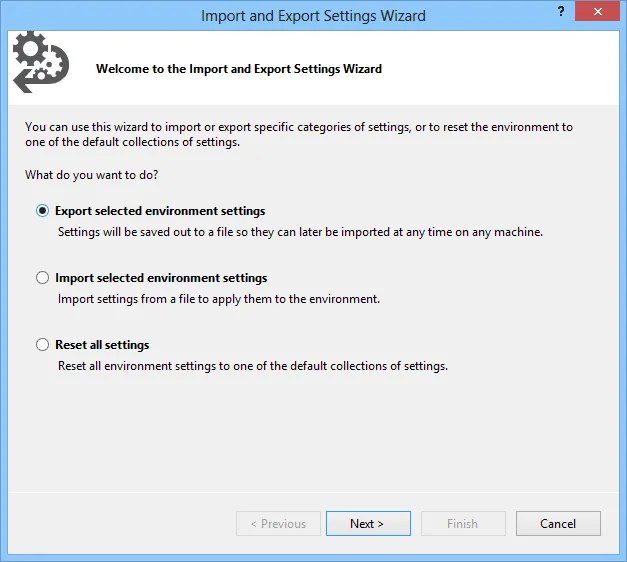
- Navigate to Tools | Import and Export Settings...
- Choose Export selected environment settings and click Next.
- Select the settings you want to synchronize and click Next again.
- Give your settings file a descriptive name and select your Dropbox directory.
- Click Finish, then Close.
Now you'll have to point Visual Studio to the settings file you just exported:
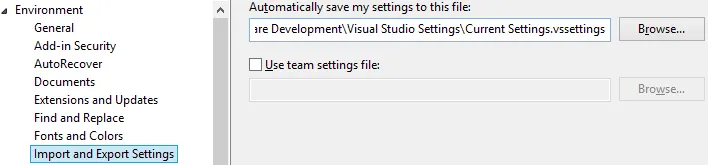
- Navigate to Tools | Options... | Environment | Import and Export Settings.
- Click the Browse... button and select the .vssettings file from your Dropbox.
- Click OK.
The next time you start Visual Studio, it'll load its settings from within your Dropbox. Note that Visual Studio loads the settings file on startup and writes back to it when it's closed.
Setting Up a ReSharper Settings File #
Hadi Hariri from JetBrains has written a detailed blog post that walks you through configuring ReSharper to load settings from a file in Dropbox, so I won't repeat what he wrote.
That's it! You now have multiple development machines sharing the same IDE settings.