
Advanced JavaScript Debugging with console.table()
Yesterday, I learned about a nifty little JavaScript debugging feature that's part of Chrome's developer tools. During Web Developer Conference Compact, Marcus Ross (@zahlenhelfer) gave a talk about the various JavaScript debugging tools implemented in Chrome, one of which is the console.table() function I want to show here.
Logging Array Data with console.log() #
Imagine you have created this list of programming languages and their file extensions:
var languages = [
  { name: "JavaScript", fileExtension: ".js" },
  { name: "TypeScript", fileExtension: ".ts" },
  { name: "CoffeeScript", fileExtension: ".coffee" },
];

console.log(languages);
The console.log() call will give you the following representation of your data:
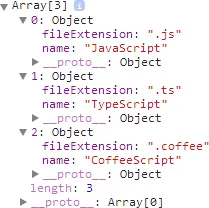
That tree view is helpful for debugging purposes, but I find it a little cumbersome to have to open every collapsed object manually. I'm saying we can do a little better with console.table().
Logging Array Data with console.table() #
Instead of calling console.log(), we'll use console.table() now:
console.table(languages);Make sure the console is open before refreshing the page; otherwise, you won't see any output. If you did everything correctly, you'll be rewarded with this nice little table view:
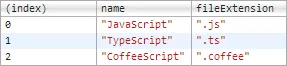
Pretty neat, isn't it? And the best thing is — the columns are sortable:
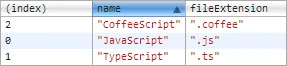
Of course, tables work best for tabular data. If the objects all have totally different structures, you'll end up with most of the cells containing undefined values. Still, the property values are neatly arranged and give you a good overview.
Logging Object Data with console.table() #
Another nice thing about console.table() is that it also works with objects:
var languages = {
  csharp: { name: "C#", paradigm: "object-oriented" },
  fsharp: { name: "F#", paradigm: "functional" },
};

console.table(languages);
'nuff said.
Filtering the Displayed Object Properties #
If you want to restrict the columns to certain properties, you can pass an array of their keys as a second parameter to the console.table() call:
// Multiple property keys
console.table(languages, ["name", "paradigm"]);
For a single property, a simple string is sufficient:
// A single property key
console.table(languages, "name");
Bottom Line #
I thought I knew about most of the functionality that comes with Chrome's developer tools, but clearly I was wrong. They're crammed with useful features just waiting to be discovered. Seriously, go check out the official documentation page; chances are you'll find some awesome feature you didn't know about.
Also, make sure to check out my other posts about the Chrome Developer Tools: